

Configure your Sending Domain
Setting up your sending domain ensures gift cards are delivered reliably to recipients and don't end up in spam folders. This process authenticates your emails using industry-standard SPF and DKIM records, protecting your brand reputation and improving deliverability.
Time required: 15-30 minutes (plus up to 24 hours for DNS propagation)
Step 1: Enter Your Domain Name
In the Govalo app dashboard, navigate to Configure → Email templates
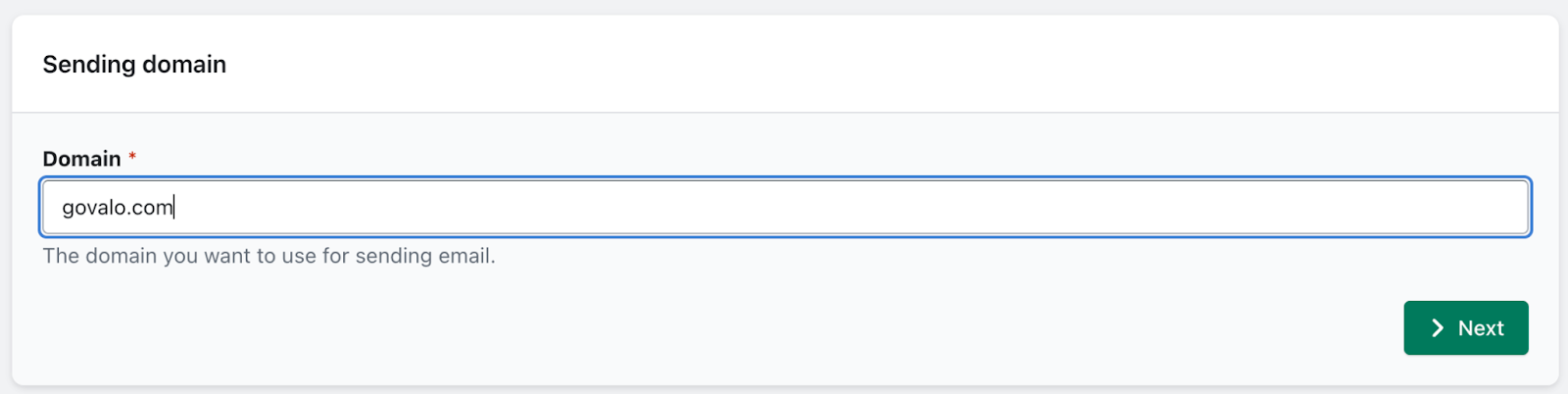
Find the "Sending domain" setting
Enter your domain name and click Next
Choosing Your Domain
Option 1: Root domain (e.g., yourstore.com)
Simpler setup
Good for stores with one brand
Option 2: Subdomain (e.g., gifts.yourstore.com or emails.yourstore.com)
Better email reputation isolation
Recommended if you send high volumes
Protects your main domain's sender reputation
💡 We recommend using a subdomain to avoid deliverability issues. If your root domain is already in use by our email software Mailgun from another app, you will need to use a subdomain for better deliverability.
For GoDaddy Users: Godaddy auto-appends your root domain to the Host field.
So for a subdomain, the merchant should only enter the subdomain prefix in the Host field — not the full subdomain.
For example, if they're using gifts.yourstore.com, they'd enter just gifts in the Host field, not gifts.yourstore.com.
GoDaddy will append .yourstore.com automatically, so entering the full thing would result in gifts.yourstore.com.yourstore.com.
No other extra steps needed — you don't have to explicitly "create" the subdomain first. Adding the DNS records for it in GoDaddy effectively creates it.
Step 2: Create DNS Records
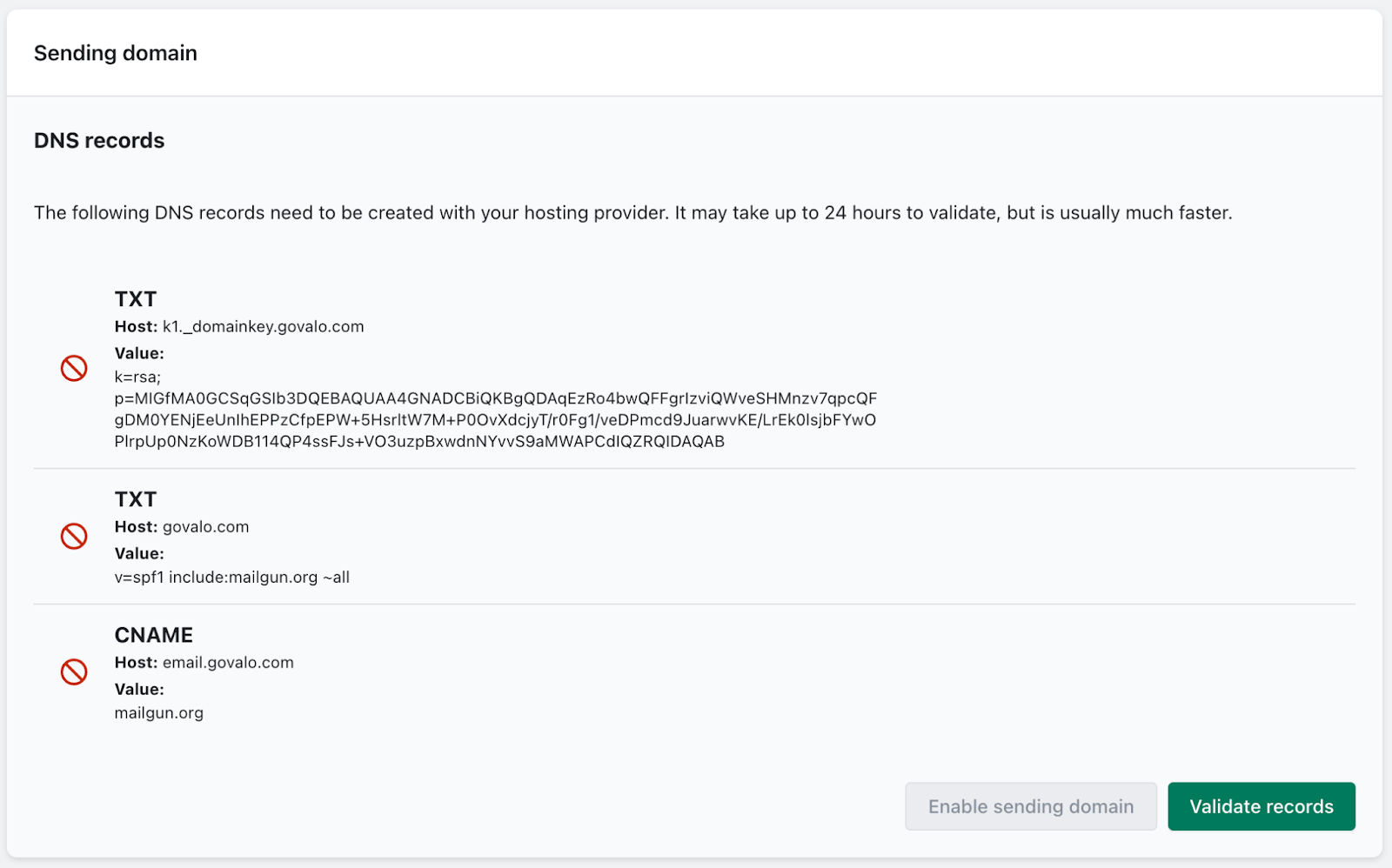
After entering your domain, Govalo will generate unique DNS records that you need to add to your domain registrar (GoDaddy, Namecheap, Cloudflare, etc.).
What You'll See:
You'll be given 2-3 DNS records with the following information:
Type: TXT or CNAME
Host/Name: The record name
Value/Data: The authentication string
Adding Records to Your DNS Provider:
Log in to your domain registrar (where you purchased your domain)
Navigate to DNS settings/DNS management
Add new records using the exact values shown in Govalo
⚠️ Important: Copy the values exactly as provided—no extra spaces or characters.
Provider-Specific Tips:
GoDaddy: May auto-append your domain to the Host field—use @ for root or just the subdomain prefix
Cloudflare: Enter values exactly as shown—no auto-appending
Namecheap: Use @ for root domain records
Shopify Domains: Follow Shopify's DNS record format (similar to most providers)
Step 3: Validate DNS Records
After adding records to your registrar, return to Govalo
Click the green "Validate records" button
The page will refresh and check for your DNS records
DNS Propagation Wait Time
Typical: Records validate within 15-60 minutes
Maximum: Up to 24 hours in rare cases
During this time: You can continue using Govalo, but hold off on sending live gift cards until validation is complete
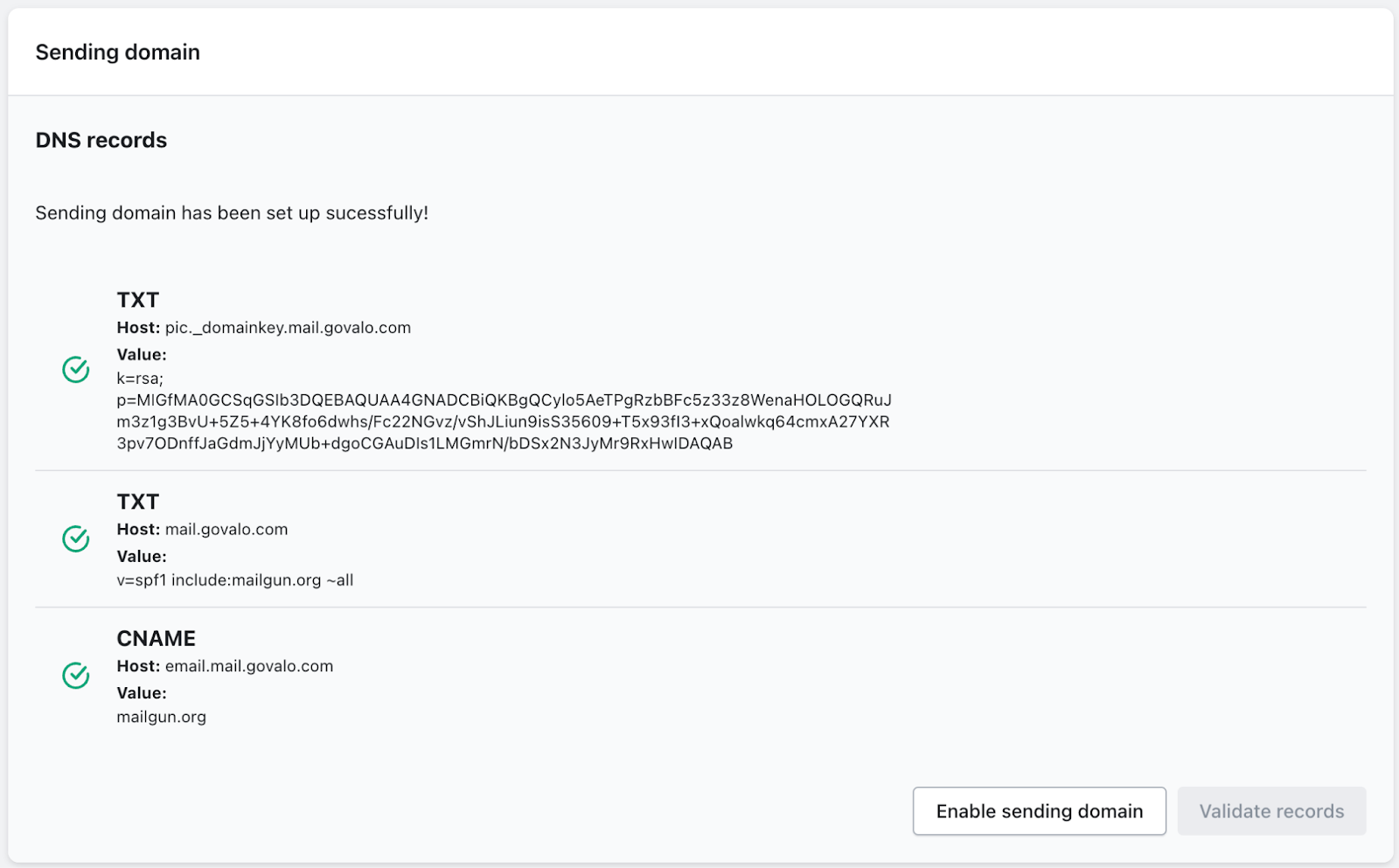
Validation Success
You'll see green checkmarks next to each DNS record when they're validated:
❌ If validation fails after 24 hours:
Double-check the values match exactly (no typos)
Ensure there are no extra spaces
Try removing and re-adding the records
Contact [email protected] with screenshots
Step 4: Enable Your Sending Domain
⚠️ Critical: Only click "Enable sending domain" after ALL records show green checkmarks.
Once enabled, your gift card emails will be sent from your authenticated domain with proper SPF/DKIM signatures.
Step 5: Test Delivery
After enabling your sending domain:
Send a test gift card to yourself
Check that it arrives in your inbox (not spam)
Verify the "From" address shows your domain
Send one to a Gmail address and a non-Gmail address to confirm broad delivery
✅ Success looks like: Emails arrive within 1-2 minutes, sender shows your domain, no spam folder placement.
Troubleshooting
"Validate records" shows red X's
Wait longer (try again in 1-2 hours)
Clear your browser cache and retry
Verify exact match between Govalo values and DNS entries
DNS records keep failing validation
Check for typos or extra characters
Some providers require @ for root domain in Host field
Contact your DNS provider for their specific formatting requirements
Gift cards going to spam after enabling
Give DNS changes 24-48 hours to fully propagate across email providers
Check that all records validated (green checkmarks)
Send from a warmed domain (not brand new)
I'm being asked for an API key
This shouldn't happen during normal setup
Contact [email protected] immediately—this indicates a configuration issue
Need Help?
If you encounter issues or have questions during setup, contact [email protected] with:
Your domain name
Screenshots of your DNS records (both Govalo and your registrar)
Description of what's not working
Our team typically responds within 24 hours.