How to issue a new Gift Card
So you have chosen to sell gift cards on your store? That's awesome! There are two ways you can create a gift card using Govalo. The first way is by going through the store front to purchase it, and the other way, as a merchant, is to go through our dashboard to create one. This article will talk about the latter.
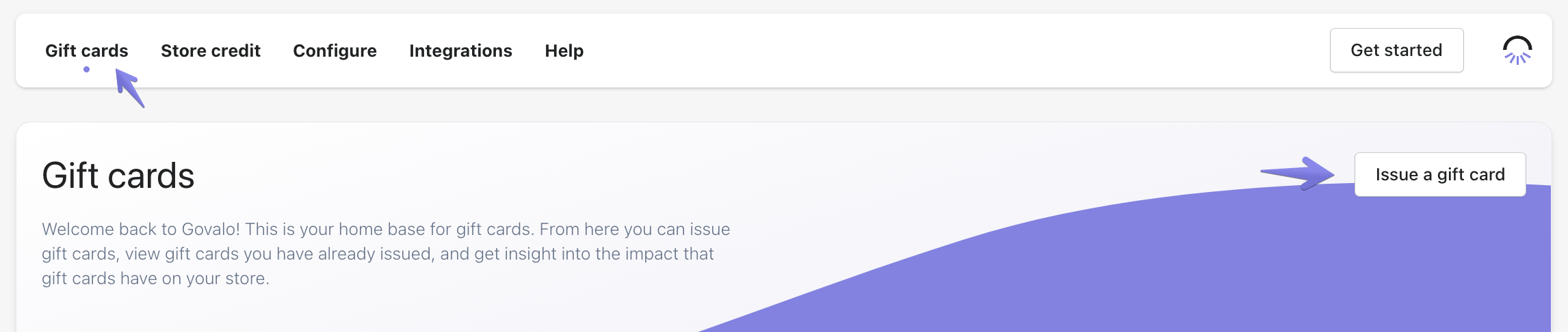
In the Govalo app, go to the Gift cards dashboard and click Issue a gift card:
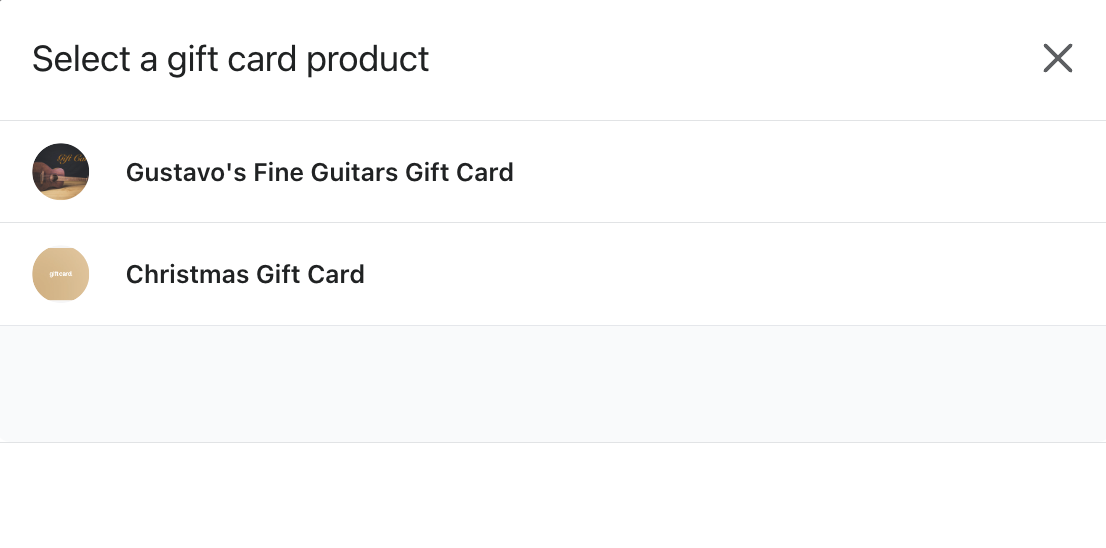
In the popup that opens, select the gift card product you wish to use when issuing the new gift card:
Fill out the form and, when finished, click Issue gift card in the lower right corner:
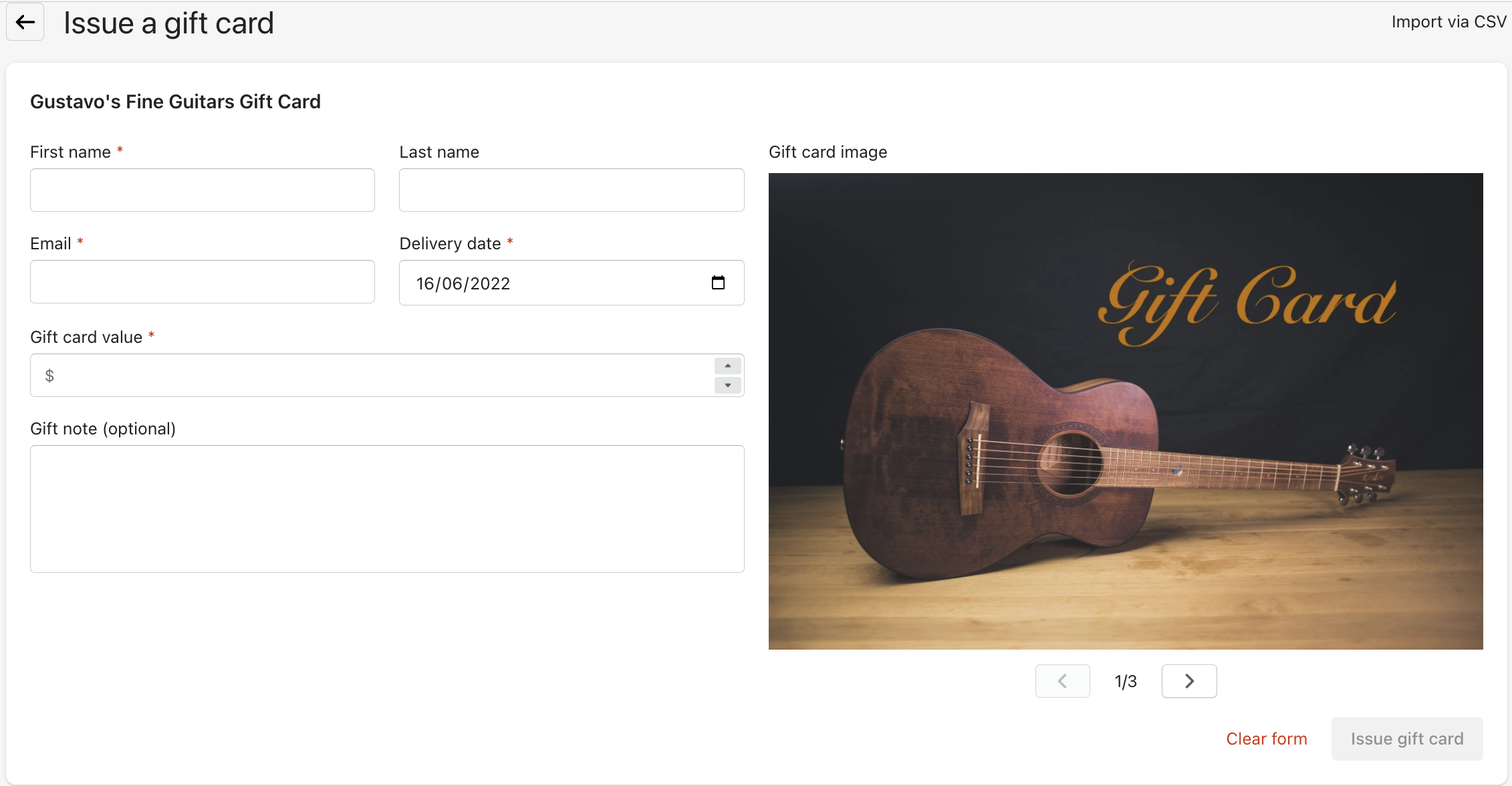
Fill the First name, Last name and Email fields with the recipient's details
For immediate delivery, leave the Delivery date set as of today
If your gift card product has multiple images, use the arrows under the image to select the one to be sent with the gift card issued
To issue cards in bulk through the Import via CSV option, see How to issue multiple Gift Cards in bulk
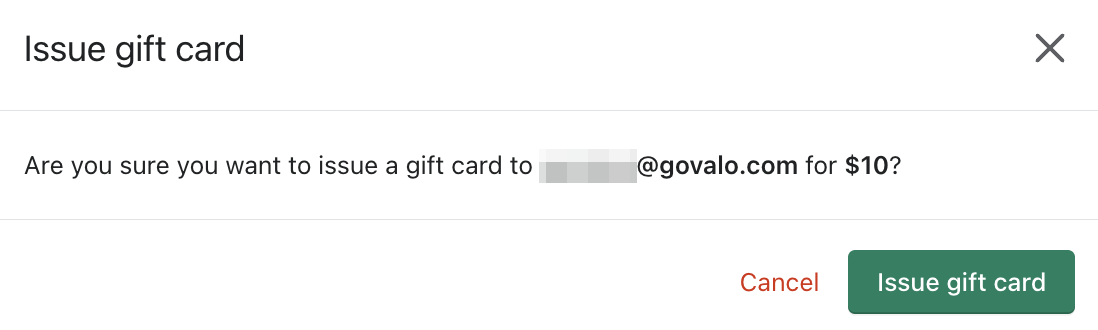
Next, in the popup that opens, click Issue gift card to confirm and finish issuing the gift card:
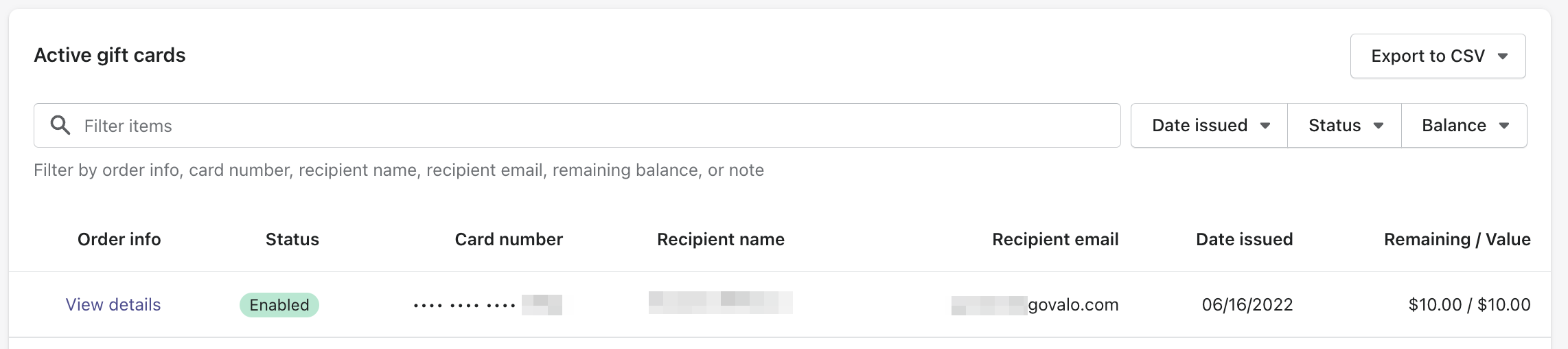
You can find the gift card issued in the Active gift cards in the Gift cards dashboard: