How to issue multiple Gift Cards in bulk via admin
If you're looking for how customers can issue gift cards in bulk from the storefront, see Corporate/Bulk Gifting.
Bulk uploading gift cards can be a great way to save time, and it's a great resource when you're running a campaign. Here's how you can issue multiple gift cards at once:
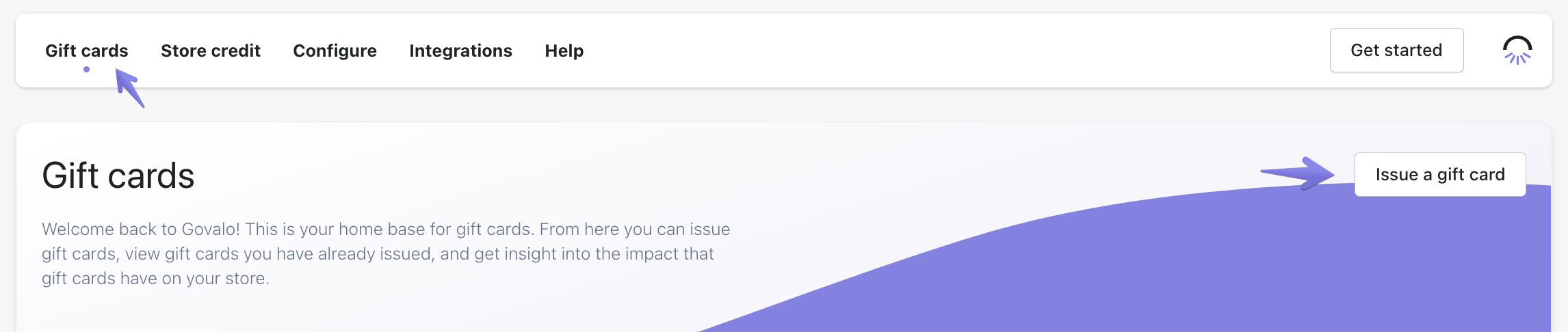
In the Govalo app, go to the Gift cards dashboard and click Issue a gift card:
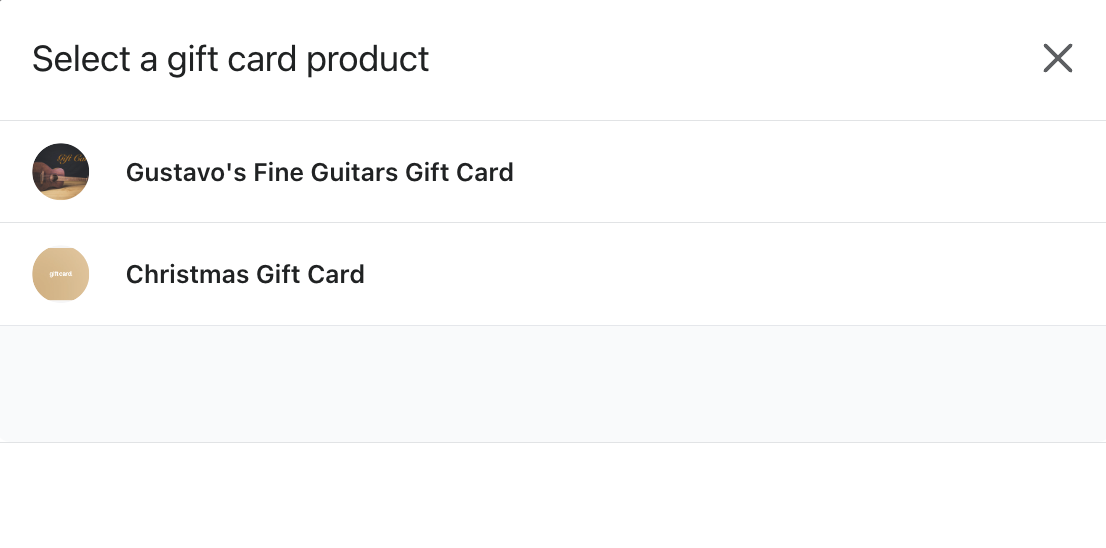
In the popup that opens, select the gift card product you wish to use when issuing the new gift card:
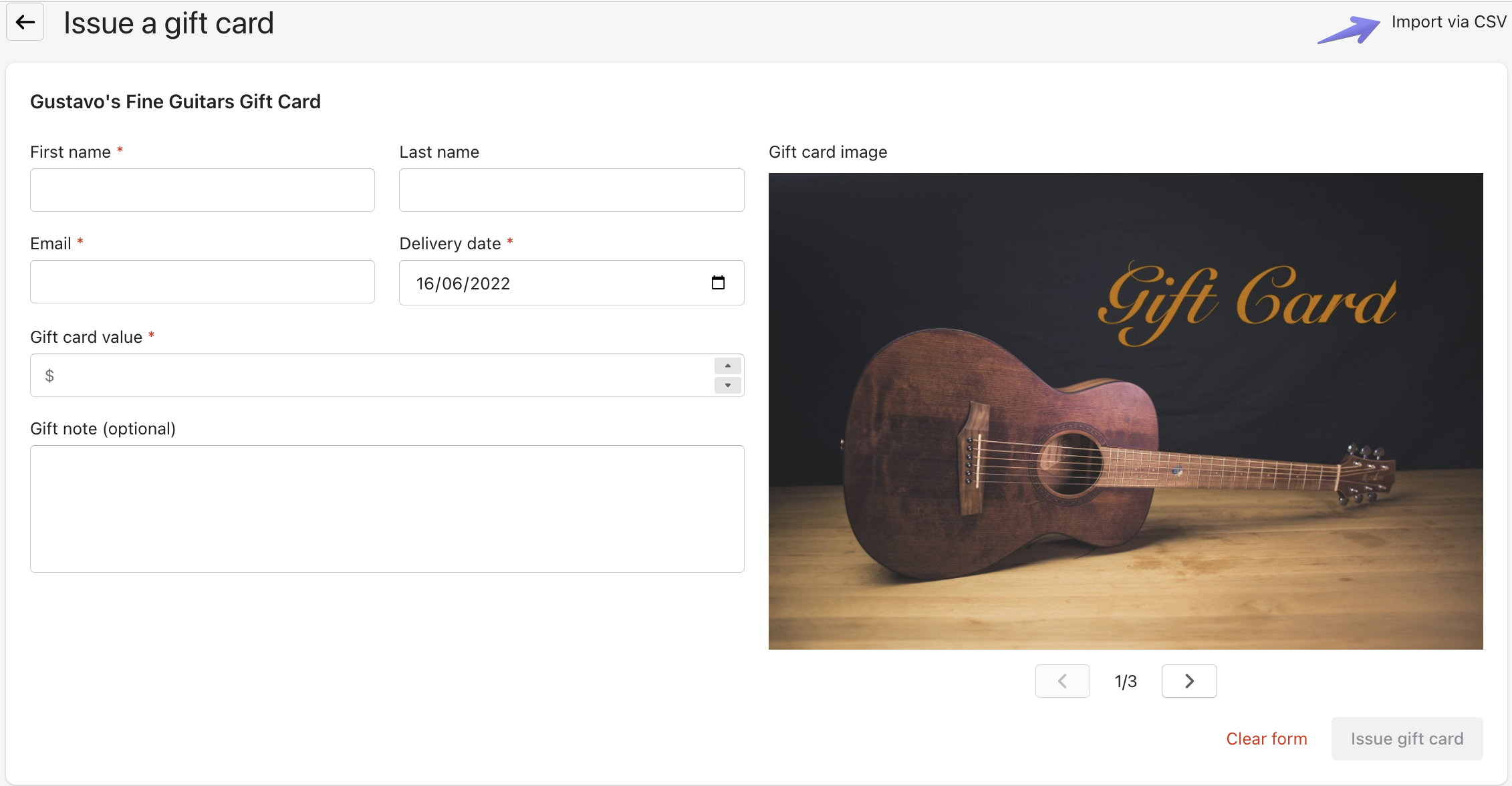
Click Import via CSV:
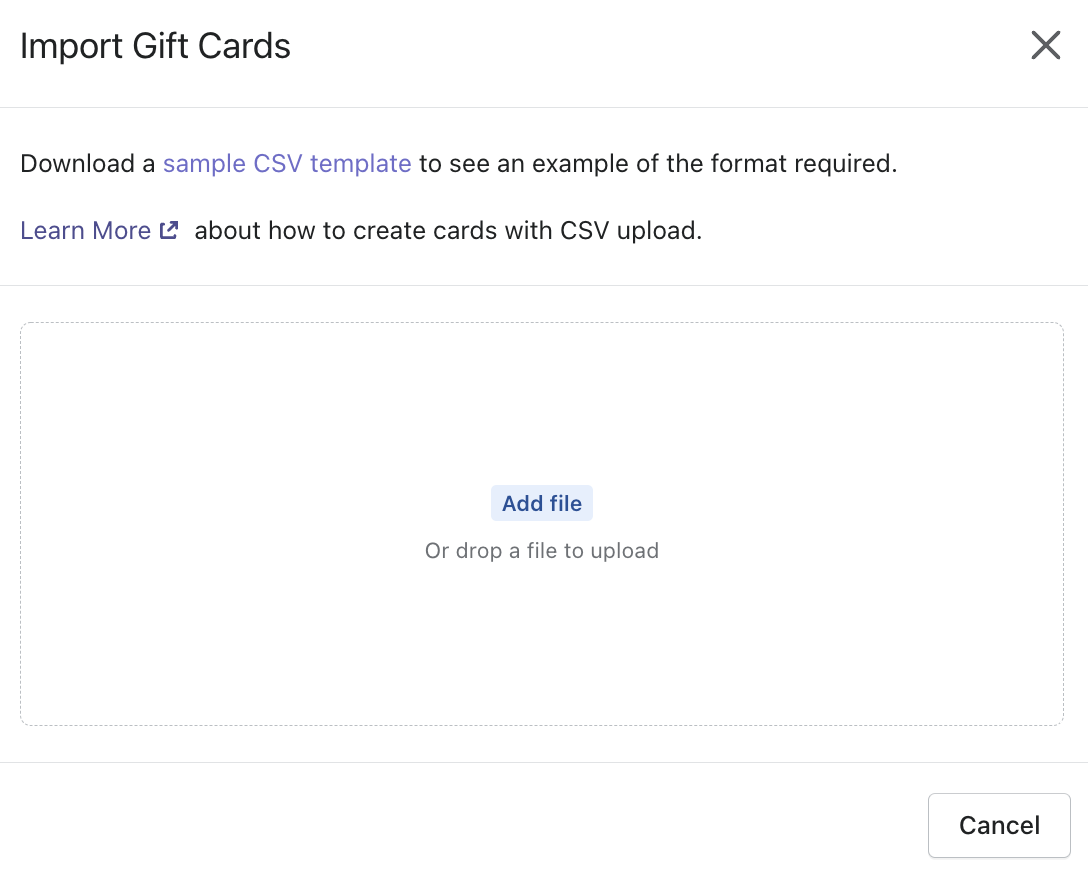
Upload a CSV following the instructions provided on the screen. You may download and use the sample CSV provided as template:
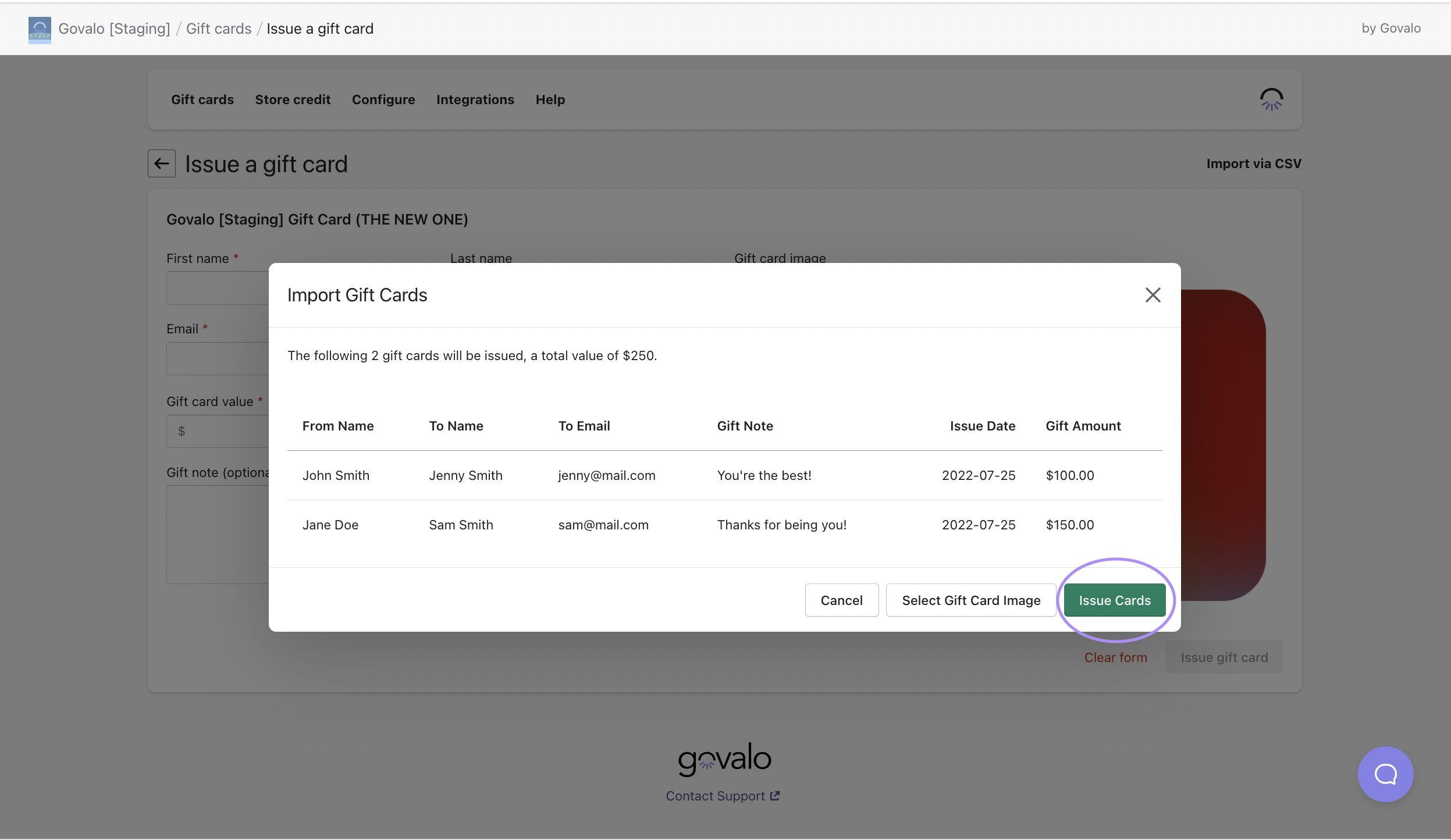
Once you have successfully added your file, you will see the list of cards that will be issued. Click Issue Cards to finish uploading your gift cards.