> ## Knowledge Base Index
> Fetch the complete knowledge base index at: https://support.govalo.com/sitemap.xml
> Use this file to discover available pages before exploring further.
> Pure-Markdown content can be obtained by appending a '.md' suffix to the content URLs listed in the sitemap (without the trailing slash).
# Translating the properties in the cart page
Govalo's gift card has some **line item properties** which are added with it to the cart, and displayed as follows:
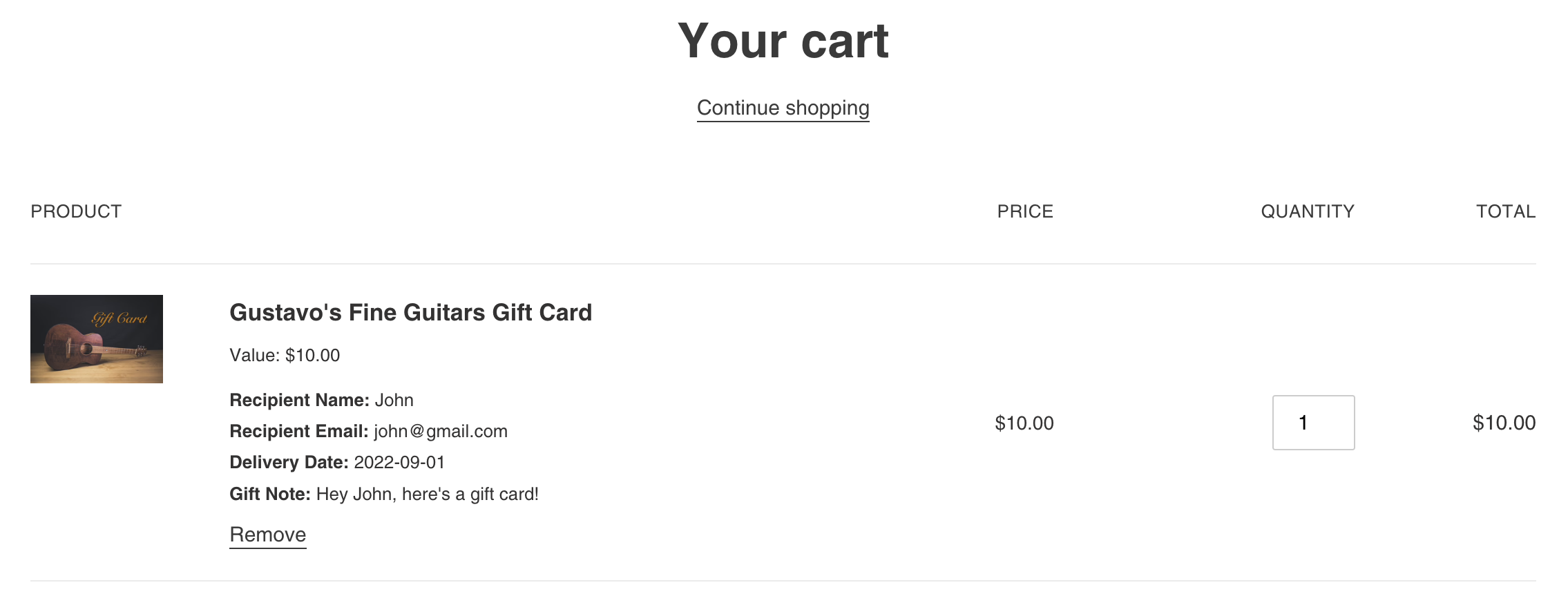
Most of the Shopify themes render these properties in a similar way, so you may translate them through the following steps:
1. On Shopify Admin, go to **Online Store > Themes**, and access the code editor for the theme in which the change will be applied (**Actions > Edit code**).
2. Locate and open the file where the properties are rendered in the cart page. This is usually **cart-template.liquid** or **cart-item.liquid**, although it may be a different file, since each theme is unique.
3. Find the line where the property name is rendered. Usually the variable **p.first** is used to render the property's name.
4. You will use Shopify's string filter **replace** to translate each property. Change the code:
{{ p.first }}
by
{{ p.first | replace: 'Recipient Name', '' | replace: 'Recipient Email', '' | replace: 'Delivery Date', '' | replace: 'Gift Note', '' }}
For which you'll replace every instance of **** by the corresponding translation for each property.
5. Make sure to **Save** your changes.