> ## Knowledge Base Index
> Fetch the complete knowledge base index at: https://support.govalo.com/sitemap.xml
> Use this file to discover available pages before exploring further.
> Pure-Markdown content can be obtained by appending a '.md' suffix to the content URLs listed in the sitemap (without the trailing slash).
# Klaviyo - Creating your Flow and Email Template - Gift Card
Some aspects of this article require programming knowledge of HTML and Shopify Liquid.
Before you follow the steps below, make sure you have connected Govalo and Klaviyo, as outlined in the guide [Setting up your integration](/klaviyo-setting-up-your-integration).
This guide covers the steps for creating a **Flow** and an **Email template** within that flow in Klaviyo, to handle the **Gift Cards** sent by Govalo.
1. In Klaviyo, go to **Flows** and click **Create Flow**, then pick the option **Create From Scratch**.
2. Give your flow a name (e.g. "Received Gift Card"), then click **Create Flow**.
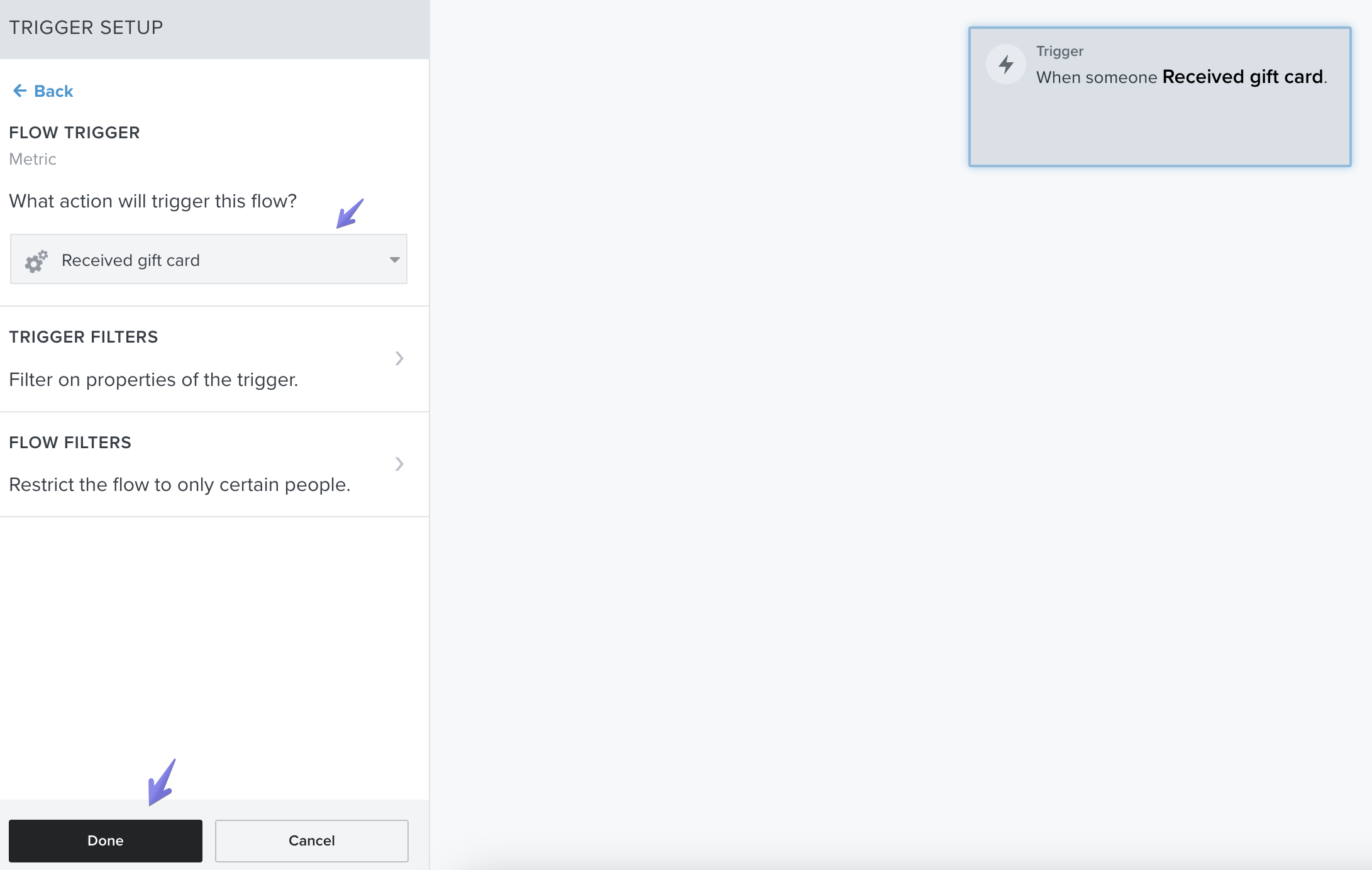
3. Let's start by setting up your **Trigger**. Among the options offered, select **Metric**, then in the drop-down selector presented, select **Received gift card**. Next, click **Done**:
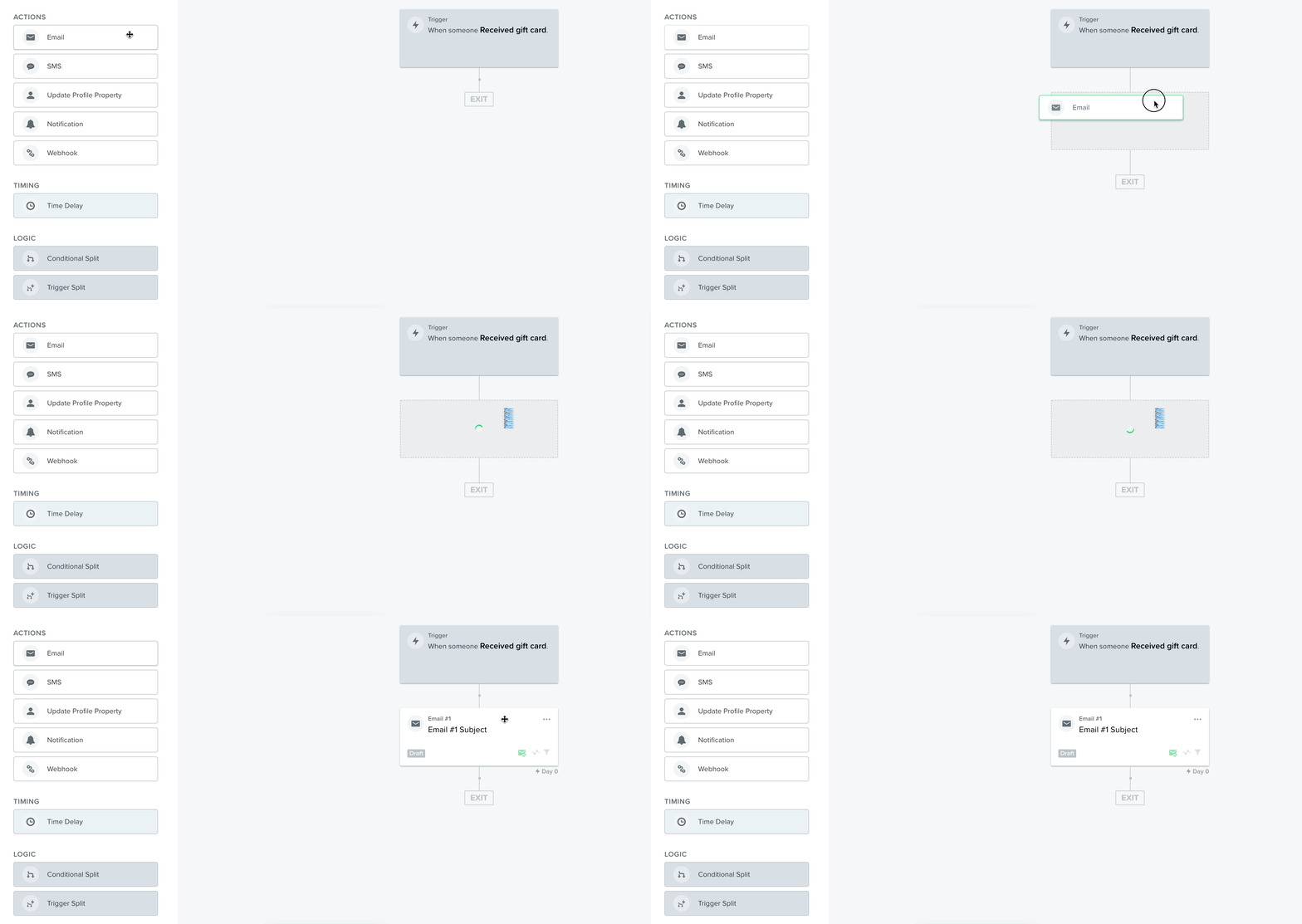
4. Next you'll set up an **Action**, through which an email will be sent. Drag the component **Email** and drop it under the trigger:
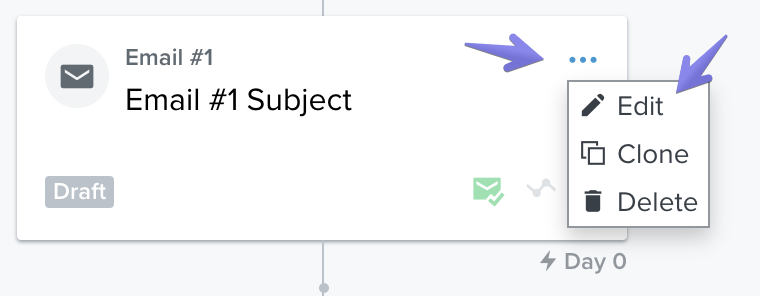
5. Click the three dots, then **Edit** to get to the editor where you'll add the custom template:
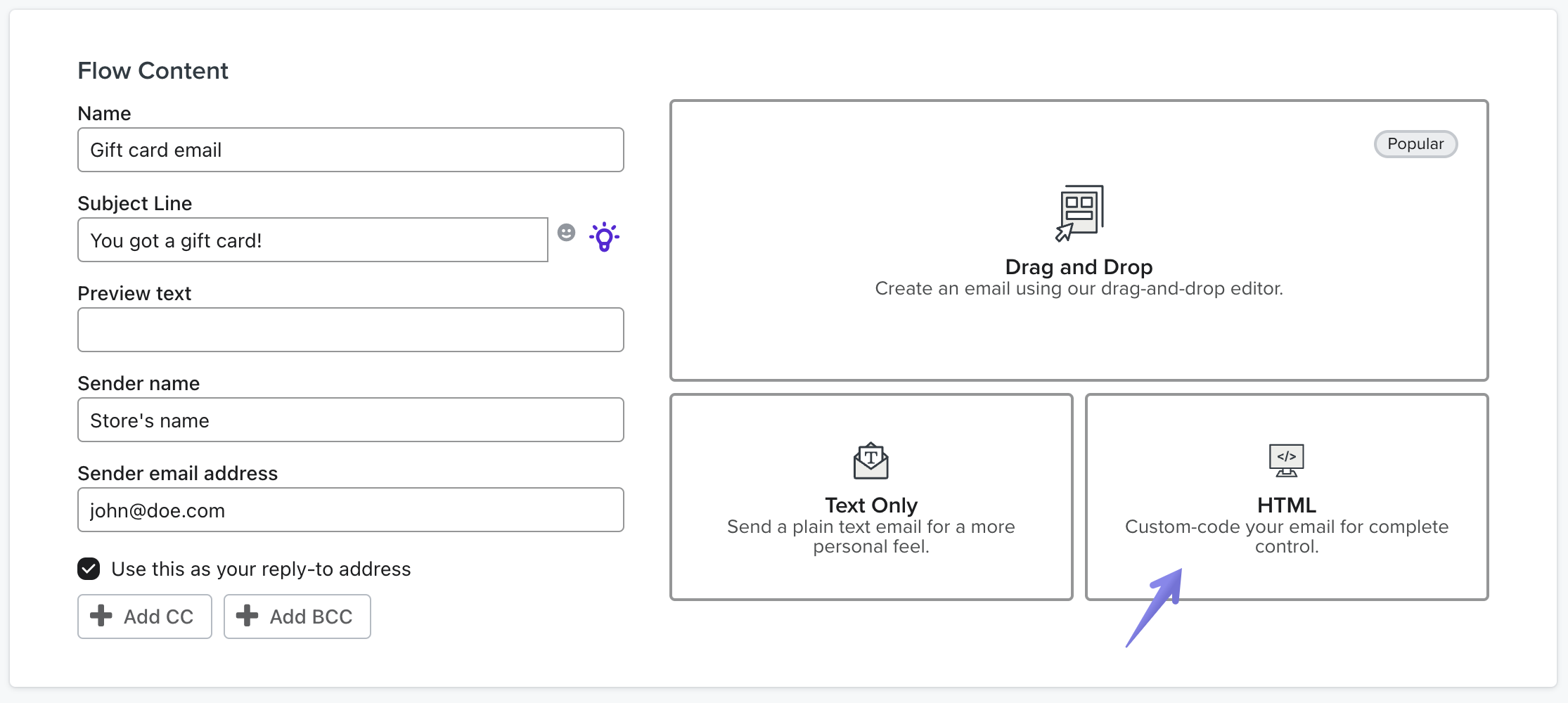
6. Fill out the fields accordingly, then select an option to create your template. We will go with the HTML option, so we can show you how you can use the variables included in the event sent by Govalo to build your template. You can proceed with this option and add your own custom HTML and styles around our example later on. Alternatively, you may use the Drag and Drop option to build a new template or select an existing one and plug our variables into it:
7. Erase the sample code pre-filled by Klaviyo, then paste the sample template you see below:
You received a Govalo gift card!
Hi {{ event.recipient }}! {% if event.sent_to_self %}Here's your gift card.{% else %}{{ event.customer }} thinks you deserve to treat yourself.{% endif %}
{% if event.sent_to_self %}
{% else %}
{% if event.gift_note != "" %}
{% endif %}
Make sure to click **Save** once you're done editing the template.
**Note:** the template presented above is merely a suggestion of how you can make use of the variables sent by the Govalo event in a structured email. You may modify it as necessary. For more information about the variables sent with Govalo events, see [Variables for use in the email template](/variables-for-use-in-the-email-template).
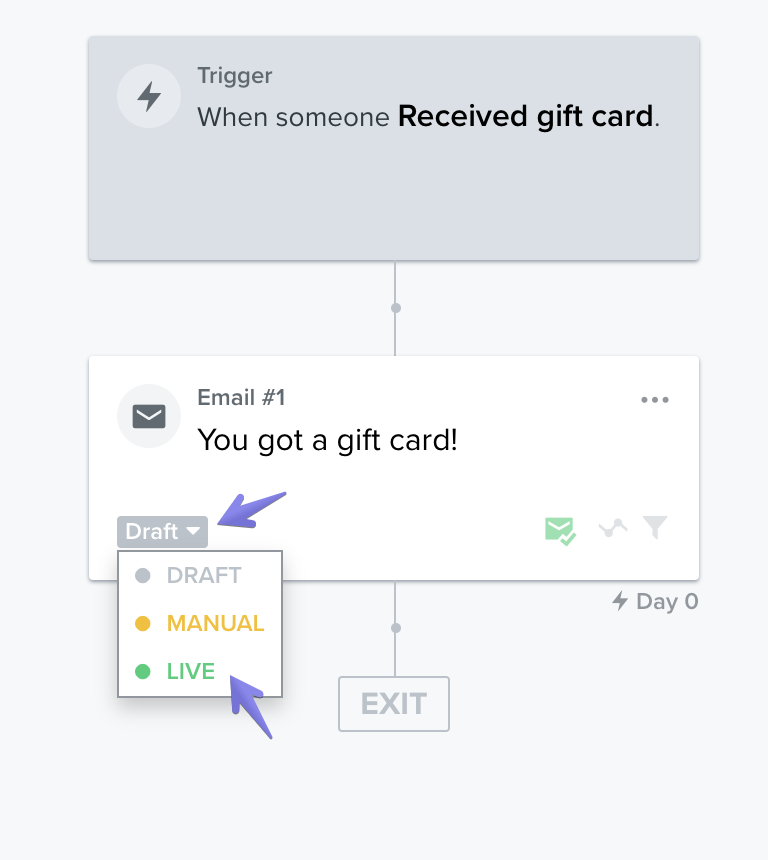
8. Back to the flow's editing page, change your email from **Draft** to **Live**:
9. Now that your Gift Card flow is set up, make sure to [configure Govalo so it sends the Gift Card emails to Klaviyo](/klaviyo-configuring-govalo-to-send-emails-through-klaviyo).